
Financial Companion Examples
This document walks you through common financial activities within the application. Understanding how different transactions affect your cash flow, net worth, budgets, and account ledgers will help you keep your records clean and accurate.
Income
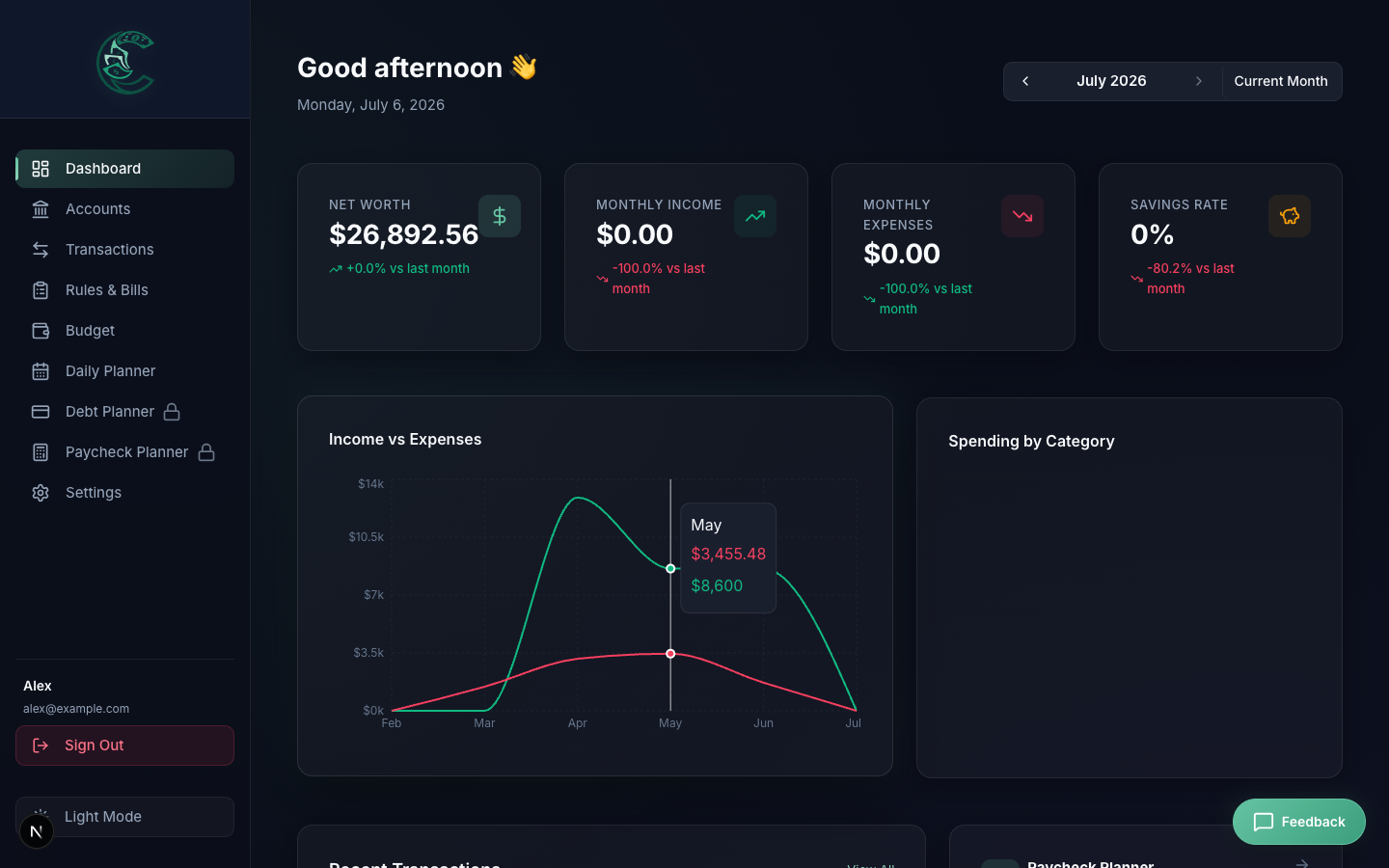
Income transactions represent money coming into your household. Examples include salary paychecks, investment returns, freelance earnings, or cash gifts.
Salary & Deposits
- Direct Deposit: When you log a paycheck deposited into your Checking account, the system immediately increases your checking asset balance by that amount.
- Net Worth Impact: Because income increases assets (cash) without adding any liabilities, it directly increases your overall Net Worth:
Net Worth ↑ = Assets ↑ - Liabilities (Unchanged)
- Household Allocations: In the Household Planner, you can define paycheck splits. For example, if you receive a paycheck, you can configure it to automatically allocate 80% to a joint checking account and 24/7 sweep the remaining 20% into savings.
Expenses
Expenses represent money flowing out of your household for goods and services. Common categories include utilities, rent, groceries, dining out, or subscription fees.
Utilities, Dining Out, & Groceries
- Asset/Liability Impact: Logging an expense reduces your asset balances (if paid with cash or debit) or increases your credit card liability balance. In either case, it decreases your net worth.
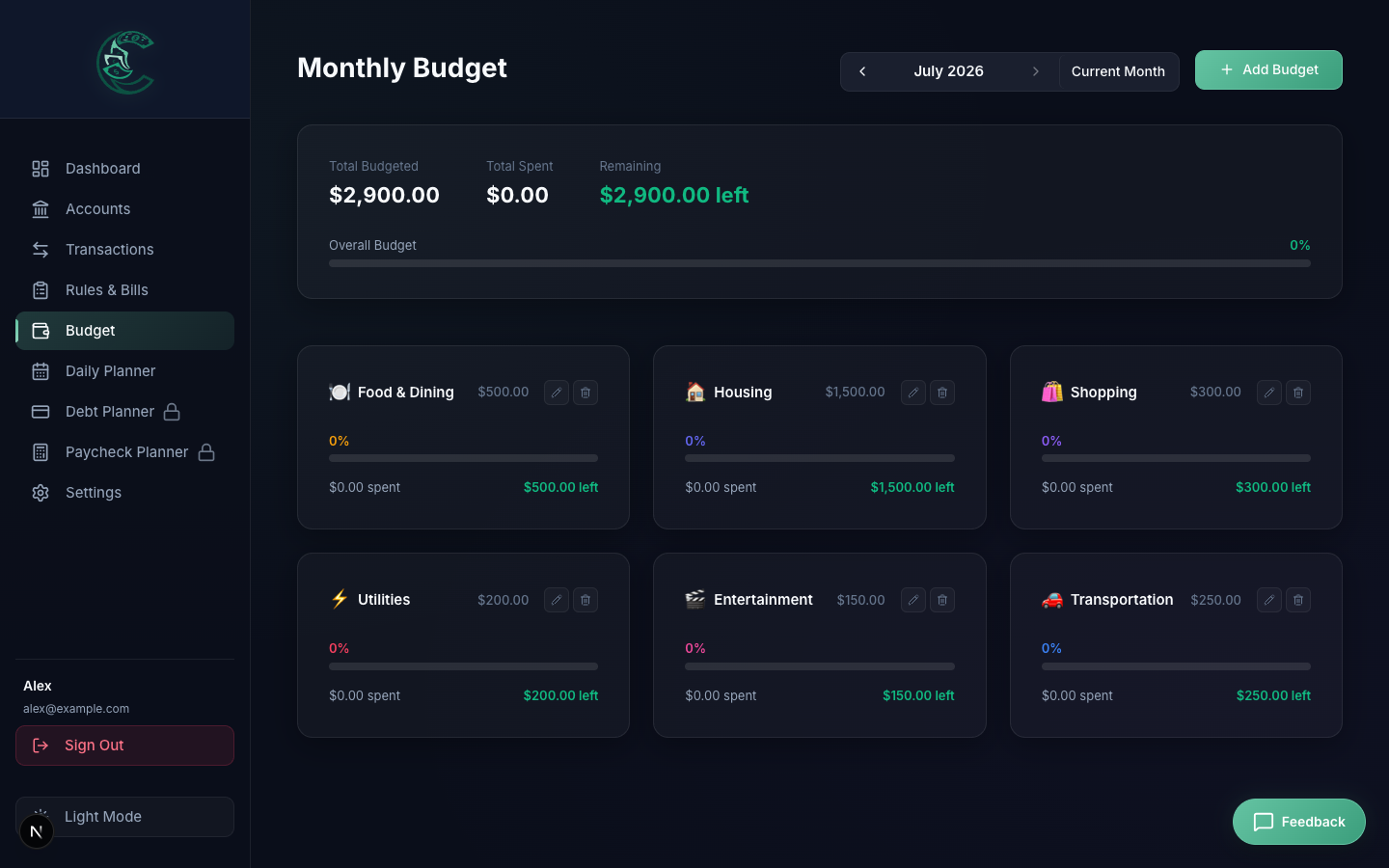
- Budget Category Tracking: Every expense is categorized (e.g.
Groceries,Utilities). The amount spent is instantly subtracted from that category's monthly budget allowance. - Rollover Budgets: If rollover is enabled for a category (e.g.,
Dining Out), any leftover amount (or deficit if overspent) will be applied to the next month's budget. For instance:- June: Budget of $200, but you only spent $170.
- July: Original budget is $200. With a +$30 rollover, your adjusted spending limit becomes $230.
Refunds & Returns
Returning an item isn't income — it's the original purchase costing less than you thought. A bank-synced refund is stored as an Expense with a positive amount, so it nets against the purchase it reverses instead of showing up as new money earned:
- Scenario: You buy a $200 jacket on your Visa, categorized as
Shopping. Two weeks later you return it, and the $200 lands back on the card. - Net Category Impact:
Shopping spent = $200 (purchase) − $200 (refund) = $0
- Categorization Rule: A refund keeps the same category as the purchase it reverses — never
Transfer. Tagging it Transfer would drop it from income (correct) but leave the $200 purchase standing at full price in Shopping (incorrect), overstating what you actually spent. - Detection: The app recognizes returns by description (
REFUND,RETURN,REVERSAL, etc.) or by the bank's spending category. Because it depends on what your bank sends, an unusually-worded credit may not be caught and will still appear as income. - Recording One by Hand: For a refund that isn't bank-synced — a cash return, or a friend reimbursing you for a shared expense — choose Expense in the New Transaction form and tick "This is a refund or return", keeping the purchase's original category. If Alex's $60 dinner reimbursement is logged this way against
Dining, the category nets to $60 spent rather than showing $120 spent plus $60 of phantom income.
Transfers (Internal Transfers)
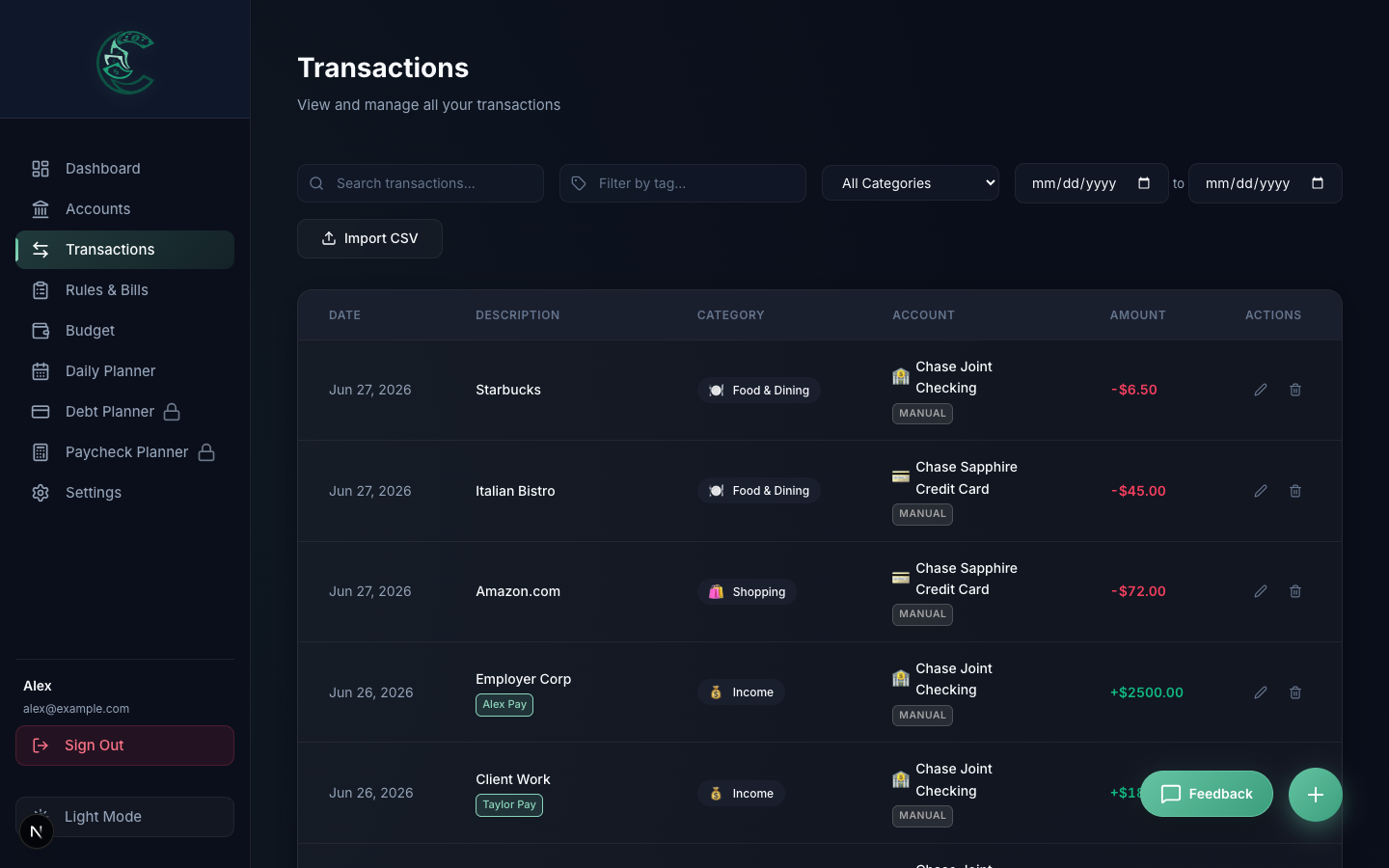
Internal transfers are movements of money between two financial accounts that you own. Examples include moving money from checking to savings, or transferring funds to pay off a credit card statement balance.
Moving Money Between Accounts
- No Cash Flow Impact: Because you are moving money you already own, an internal transfer does not count as income or an expense. It will not appear in your cash flow charts.
- Net Worth Neutrality: Assets are relocated but not depleted. For example, moving $1,000 from checking to savings increases savings (+1,000) and decreases checking (-1,000). The net change is zero:
Net Worth (Unchanged) = (Checking ↓ + Savings ↑) - Liabilities (Unchanged)
- Credit Card Payments: Paying a credit card balance from checking is also a transfer. It decreases checking assets (-1,000) and decreases credit card liabilities (-1,000), leaving net worth unchanged.
- Paired-Transfer Mechanism: When you log a Transfer, the app automatically generates a matching offset transaction in the destination account. Modifying or deleting either transaction automatically synchronizes the change in both accounts.
- Auto-Detected Card Payments: If you pay your card bill outside the app (e.g. your bank's own bill-pay), Plaid and SimpleFIN feeds have no way to say the two resulting transactions are related. Every sync scans for this pattern — a payment-shaped description on the card credit, matched to a same-amount debit within a few days — and links them into a Transfer automatically, the same as if you'd logged it by hand. These auto-detected pairs can't be deleted (they're real bank rows), but if the app guessed wrong you can open either transaction and choose Not a transfer. Note that this pairing applies to credit cards only; loans and mortgages are handled differently, described under Debt Payments below.
Debt Payments
Debt payments are transfers of capital to reduce outstanding amortized liabilities, such as student loans, mortgages, or car loans.
Reducing Liability Balances
- Cards and loans are not the same. Paying a credit card is not an expense — the spending was already recorded as individual charges, so counting the payment too would double-count your outflow. A loan payment is an expense: nothing was recorded when you borrowed the money, and part of every payment is interest, which is real spending. So card payments drop out of your totals entirely, while loan payments stay in them.
- How it Works in the App:
- Log a single expense from your checking account for the full payment amount, and select the target debt.
- Your checking balance decreases and a payoff event is recorded against the debt.
- If the loan has its own account, that account's balance is the source of truth for the planner — it drops by principal only, because that is what your lender reports. If the debt has no account, the full payment is subtracted from its balance, so check it against your statement periodically.
- Synced Loan Payments: If your loan is connected through Plaid or SimpleFIN, the lender may also report the payment as a credit on the loan account. That credit is excluded from your income automatically, since it is only the balance-side mirror of the payment you already logged. The funding-account expense is deliberately left counting, so the interest you paid never disappears from your spending.
- Waterfall Simulations: The Debt Payoff Planner uses these logs to track your actual progress against snowball or avalanche schedules, calculating exactly how much interest you have saved and adjusting your estimated debt-free date.
Debt Payoff Scenario
Accelerating your path to becoming debt-free is one of the most powerful features of the application. This scenario illustrates how strategy and extra allocations work together to eliminate liabilities.
The Scenario
Alex is managing two outstanding liabilities:
- Credit Card: $2,136.44 balance at 18% interest (minimum monthly payment: $80).
- Student Loan: $12,500.00 balance at 5.5% interest (minimum monthly payment: $150).
- Minimum Baseline: $230/month is required just to cover the minimum payments.
How It Works: Debt Avalanche Strategy
Alex decides to allocate an extra $200/month toward debt payoff, raising their total monthly debt budget to $430/month. Under the Debt Avalanche strategy, the app automatically prioritizes accounts with the highest interest rates:
- Step 1: Cover Minimums. The system allocates the minimum payment of $150 to the student loan and $80 to the credit card.
- Step 2: Direct the Surplus. The remaining surplus of $200 is directed entirely to the credit card (the highest interest rate at 18%), making the total monthly payment on the credit card $280.
- Step 3: Avalanche Cascade. Once the credit card is completely paid off, the entire $430/month is rolled over to pay off the student loan, accelerating its retirement.
Windfall Simulation: December Bonus
In December, Alex receives a one-time annual bonus and logs an extra payment of $1,000 inside the payoff planner. Here is how the system processes this windfall:
- Immediate Allocation: The $1,000 is applied directly to the credit card because it has the highest interest rate. This wipes out a significant chunk of the $2,136.44 balance.
- Waterfall Cascade: If the credit card balance had been less than $1,000 (e.g. $400 remaining), the remaining $600 would have automatically cascaded down to the student loan.
- Interest & Time Saved: The simulation immediately updates, showing how this single $1,000 injection shaves months off Alex's overall payoff timeline and saves hundreds of dollars in future interest charges.
Planned Expenses (Sinking Funds)
Some bills are large but predictable — they just don't arrive every month. This scenario shows how the app spreads one of those out ahead of time, and adjusts itself if you fall behind.
The Scenario
Alex's homeowner's insurance premium is $1,200, due in 12 months. Rather than let it hit as a single $1,200 charge in one month's budget, Alex creates a Planned Expense with that target amount and due date, set to renew yearly.
How the Monthly Contribution Is Calculated
Monthly Contribution = (Target − Saved So Far) ÷ Months Remaining
- Month 1: Nothing saved yet, 12 months remaining. ($1,200 − $0) ÷ 12 = $100/mo.
- Months 2–9: Alex contributes $100 each month, right on schedule. Balance reaches $800 by month 9, with 4 months left — still $100/mo.
- Month 10 — a month is missed: Alex skips a contribution. The fund now needs ($1,200 − $800) ÷ 2 remaining months = $200/mo for the last two months, rather than silently falling short at renewal.
- Month 12 — the bill arrives: The fund holds the full $1,200. Alex opens the Planned Expense, clicks "Record Payment," and matches it to the insurance charge from the bank feed. The charge is paid from the fund, not from that month's regular budget.
What Happens With a Shortfall
If the premium had instead arrived a month early, with only $1,000 saved, recording the $1,200 payment would draw down the full $1,000 the fund holds — and the remaining $200 would count against the budget category for that month, exactly like an ordinary uncovered expense. Nothing is hidden either way: the budget always reflects what the fund actually paid for, never the whole bill regardless of what was saved.
Tracking Bitcoin Alongside Shares
Coins live in the same portfolio as your shares, with one wrinkle worth understanding, because getting it wrong is silent rather than loud.
The Scenario
Alex holds 0.15951919 BTC, bought for $12,345, and wants it beside the stocks rather than in a separate app.
Step by Step
- Search for it. On the Watchlist tab, type
BTCorbitcoin. The coin appears at the top of the results as BTC/USDT, labelled crypto, above any shares whose name happens to contain "bitcoin". Picking it fills in the full symbol,BINANCE:BTCUSDT. - Or add the position directly. Use Add holding, enter the symbol, the account it sits in, and
0.15951919shares with a $12,345 cost basis. If you type justBTC, the form notices and offers the coin instead. - Prices arrive on their own. BTC shows around $77,442, the position around $12,353, and the gain against your basis is calculated as it is for any share.
Why the Symbol Carries an Exchange
BTC by itself is a real stock ticker belonging to a company that has nothing to do with Bitcoin, and it trades at roughly $34. Had the app accepted a bare BTC, Alex's holding would have been valued at about $5.45 instead of $12,353 — and because $34 is a perfectly valid price for a perfectly valid stock, nothing afterwards could have flagged it. The exchange prefix is what removes the ambiguity. ETH and SOL have the same problem.
What Is Different From a Share
- Eight decimal places, not four. A position of 0.00042317 BTC would round to 0.0004 at four — a 5% error in the quantity, and the same error again in its value.
- Prices under a dollar keep their precision. DOGE shows as
$0.0819, not$0.08, and price‑target alerts read properly instead of "at $0.08, at or below the $0.08 you were watching for." - Weekends still update. Shares are only re‑priced while the market is open, because a closed exchange means the price cannot have moved. Coins trade continuously, so they refresh overnight and at weekends too.
- Dollar pairs only. A pair priced in another coin — ETH against BTC — is refused, because its price is a number of Bitcoin and adding that to a dollar total would be meaningless.
- No research reports. Those read SEC filings, and a coin has no company filing them.
Researching a Company From Its Filings
The Research tab answers “what is this company, actually?” by reading the company’s real SEC filings rather than recalling anything about it.
The Scenario
Alex holds Apple and wants to understand the latest annual report without reading 200 pages of it.
Step by Step
- Pick the company and the agent. On the Research tab, select AAPL, then Annual report deep‑dive. A confirmation shows the estimated cost — about 15 cents — before anything runs.
- It fetches first, writes second. The app downloads Apple’s actual 10‑K from the SEC, pulls the filed figures, and calculates the growth rates and margins itself. The model is given those as fixed facts and is not allowed to do arithmetic.
- Read it, then check it. A minute or two later the report appears. Every claim carries a small marker —
[S1],[S2]— that jumps to the exact filing section, figure or news story behind that sentence. - Take it with you. Download PDF saves it as a printable memo with the sources and their links. If Alex has also run the earnings breakdown and the thesis memo, one button combines all three into a single dossier with a contents page.
What It Will Not Do
- It never recommends. The thesis memo deliberately ends without a verdict, listing the evidence that would settle the question instead.
- It refuses impossible requests up front, for free. Ask for a report on an ETF, a foreign listing or a cryptocurrency and you get a plain sentence explaining why not — those don’t file the reports it reads — rather than a confident report about a company that doesn’t exist.
- It tells you what it could not see. Every report ends with the gaps: sections too long to read in full, data the filing did not contain, material already out of date.
Daily Planner
The Daily Planner puts today's everyday spending amount above a day-by-day calendar. Select a date to see its recorded transactions and upcoming bills. Today's amount comes from a spending plan, not an account balance, because a balance may still include money needed for next week's rent. The example below shows how the plan sets bills aside and splits the rest across the days that remain.
Today's Spending Plan
Meet Alex. Their category budgets total $2,900 a month, the categories include their fixed costs, and those costs are entered as recurring bills. It is the 14th of a 30-day month.
Calculation Steps:
| 1. Monthly budget (or income less your savings target) | $2,900 |
| 2. Less: recurring bills, reserved for the whole month up front Rent $1,200 · Power & Water $120 · Cable $60 · subscriptions $26 |
-$1,406 |
| Spending money for the month | $1,494 |
| 3. Less: day-to-day spending on the 1st–13th (bills not counted) | -$650 |
| 4. Remaining pool | $844 |
| 5. Divide by days left, including today | 17 days |
| Left to spend today | $49.65 / day |
The How this is worked out disclosure shows the same division — "$844 left ÷ 17 days" — so you can check it by hand.
Why Rent Day Is Uneventful
Alex's $1,200 rent leaves their account on the 1st. Because it was reserved in step 2, the left for today amount does not fall when the payment arrives. The payment still appears in the calendar and that day's transaction list, labeled as a bill.
This only works for bills the app knows about. A fixed cost that has never been entered on the Recurring page is treated as everyday spending. If today's amount falls sharply on the same date each month, review your recurring bills.
Dynamic Recalibration
The figure is not a fixed daily allowance; it is recalculated from the remaining pool every day.
- Make a purchase: Alex spends $150 on dinner today — about $100 more than today's $49.65 target.
- The pool drops: $844 becomes $694.
- Tomorrow re-divides it: 16 days remain, so tomorrow opens at $694 ÷ 16 = $43.38.
- Tomorrow adjusts: one expensive evening trims about six dollars a day off the rest of the month. Today's summary shows how far over the target Alex went.
It works the other way too: a quiet week lifts the daily figure gently instead of banking a lump sum that makes one day look extravagant. For someone spending steadily, the number barely moves from one day to the next — which is what makes it worth glancing at.
The Calendar and Trends
The month calendar shows each day's recorded spending, income, and scheduled bills. Select a day to see its purchases and bill payments. Open Spending trends when you want to see the money left this month, a month-end estimate, or the last seven days of everyday spending.
Paycheck & Household Split
Managing finances as a couple requires balance. This scenario shows how the application helps couples (Alex and Taylor) automate their shared and individual financial goals transparently.
Step-by-Step Process Flow
- Step 1: Configure Joint Targets. Alex and Taylor set up their joint goals in the configuration settings, designating accounts for
Joint Checking(shared bills) andJoint Savings(shared savings goals). - Step 2: Alex Logs a Paycheck. Alex receives a bi-weekly paycheck of $3,000. Based on their configured rules (70% Joint Checking, 10% Joint Savings, 20% Personal), the system automatically allocates the funds:
- Joint Checking (70%): $2,100 deposited.
- Joint Savings (10%): $300 swept to savings.
- Alex's Personal Checking (20%): $600 retained for personal spending.
- Step 3: Taylor Logs a Paycheck. Taylor receives a paycheck of $2,500. The app splits it using Taylor's rules (e.g. 70% Joint Checking, 10% Joint Savings, 20% Personal):
- Joint Checking (70%): $1,750 deposited.
- Joint Savings (10%): $250 swept to savings.
- Taylor's Personal Checking (20%): $500 retained for personal spending.
- Step 4: Drawing Expenses. The couple pays shared obligations (rent, utilities, insurance) directly from the
Joint Checkingaccount. Meanwhile, their individual discretionary expenses (hobbies, individual gifts) are paid from their respective personal checking accounts, preventing friction over minor daily spending.
SimpleFIN Auto-Sync Scenario
Keeping transactions up-to-date automatically is key to stress-free budgeting. This scenario walks through how Alex sets up SimpleFIN to pull transaction feeds and how the application automatically sanitizes, dedupes, and categorizes incoming records.
1. The Connection Setup
Alex logs into their SimpleFIN dashboard at bridge.simplefin.org and copies a new Setup Token. In the companion app, Alex navigates to Settings -> Import & Export, pastes the Setup Token, and maps their bank's "Classic Checking" account to their local "Checking" ledger in the application.
2. Duplicate Prevention via Transaction ID Mapping
SimpleFIN provides a unique id for every transaction it fetches from the bank. The application stores this value in the database as the simplefinTxId. During synchronization:
- The Sync Request: The app fetches transactions from the SimpleFIN API. It receives a transaction:
{ "id": "1720641123-9921-check-993", "amount": "-4.85", "description": "STARBUCKS #1234", "posted": 1720641120 } - Uniqueness Check: The app queries the database:
SELECT id FROM "Transaction" WHERE "simplefinTxId" = '1720641123-9921-check-993'. - Deduplication: If the transaction is found, it is skipped. This prevents duplicate entries even if the transaction is pulled multiple times across manual or automated sync cycles.
3. Auto-Categorization & Tagging
Once the transaction is verified as new, the transaction description (STARBUCKS #1234) is passed to the application's Rules Engine before being written to the database:
- Matching Rule: Alex has an active rule configured:
If Description contains "STARBUCKS" → Categorize as "Food & Dining" and apply tags ["Discretionary"]. - Processing: The engine matches the description, assigns the category and tags, and saves the transaction.
- Result: Alex opens their transactions log and sees a clean entry:
STARBUCKS #1234categorized underFood & Dining, tagged withDiscretionary, and their checking balance updated atomically by -$4.85.
Property Manager & Schedule E Scenario Pro
This scenario illustrates how the Property Manager tracks rental income, expenses, and depreciation to automatically build your Schedule E for tax time.
1. Setup and Rent Collection
Alex owns a duplex ("123 Main St") and sets it up as a Property with two units. Unit A is rented for $1,500/month. Alex generates the rent roll for the year. When a $1,500 deposit clears the bank with the tenant's name in the description, the app automatically links it to the rent charge for that month, marking it as Paid.
2. Tracking Expenses vs Capital Improvements
Alex's bank feed pulls in a $250 charge from "Bob's Plumbing". Alex categorizes this as Repairs for 123 Main St. This $250 immediately appears on Schedule E line 14 (Repairs).
Later, Alex replaces the HVAC system for $4,500. Alex marks this as a Capital Improvement. Instead of taking a $4,500 deduction this year (which would distort the property's profit), the app adds $4,500 to the property's cost basis and begins depreciating it over 27.5 years.
3. Mortgage Interest & Depreciation
Alex links the property to a $200,000 mortgage in the Debt Planner. The app uses the loan's amortization schedule to automatically calculate the interest portion of each payment and applies it to Schedule E line 12 (Mortgage Interest). Along with the calculated straight-line depreciation for the building and the new HVAC system, Alex has a complete, tax-ready Schedule E at year-end without maintaining separate spreadsheets.
A $10,000 Bonus — Where Should It Go?
Jordan's annual bonus lands: $10,000. Paying down the card, topping up savings, and investing all sound reasonable, and the usual outcome is that it sits in checking for four months while Jordan thinks about it. This scenario walks through what the Money Advisor tab does with that question.
Not Advice
The advisor applies a conventional priority order to your own numbers and shows its work. It is not a financial adviser, it cannot place a trade, and the thresholds it uses are settings you can change.
What the App Already Knows
- Liquid cash: $16,500 across checking and savings.
- Average monthly expenses: $3,000 — calculated from Jordan's own last three months of personal spending, not a figure anyone typed in.
- Debts: Sapphire Card $2,400 at 22.90%; Auto Loan $11,000 at 5.40%; Student Loan $9,000 at 3.25%.
- Investments: a Roth IRA is among the linked accounts, so there is somewhere tax-advantaged for this to go.
- Thresholds (defaults): $1,000 starter buffer, 6-month reserve, pay down anything at or above 7%, leave anything below 4% alone.
The Answer, Step by Step
- Starter buffer — nothing needed. The $1,000 starter buffer is already covered several times over by $16,500 in cash, so this step doesn't appear at all. The advisor doesn't pad an answer with steps you've already cleared.
- Sapphire Card → $2,400. At 22.90%, clearing it is a guaranteed 22.90% return, which no investment can promise. The whole balance is cleared. $7,600 left.
- 6-month reserve → $1,500. At $3,000 a month, six months is $18,000. Jordan holds $16,500, so the gap is exactly $1,500. Note that this is the same pile of cash the starter buffer was measured against, not a second one. $6,100 left.
- Tax-advantaged investing → $6,100. Debt above the line is gone and the reserve is full, so the remainder belongs in the market — and inside the retirement account first, where growth isn't taxed along the way. The app can't see how much contribution room is left, and says so.
$2,400 + $1,500 + $6,100 = $10,000.00
The allocation always reconciles to the amount entered, to the cent, at every amount — there is no rounding drift and no leftover dollar quietly dropped.
The Two Debts It Deliberately Didn't Pay
Neither omission is silent. Both arrive as notes underneath the plan:
- Student Loan, 3.25% — below the 4% line. Paying it early is a guaranteed 3.25% return; investing instead has historically beaten that, without the guarantee. Keep paying the minimum either way.
- Auto Loan, 5.40% — between the 4% and 7% lines, where neither answer is clearly right. The advisor says exactly that: this one is a preference, not a calculation.
What It Admits It Can't See
Every plan ends with its own blind spots, because a confident answer built on invisible inputs is worse than a hedged one:
- An employer 401(k) match is usually the best return available anywhere and the app cannot see one. If Jordan isn't capturing a full match, that outranks every step above.
- Contribution limits, remaining room, tax bracket and filing status aren't visible here.
- Insurance gaps, dependants, job security and Jordan's own tolerance for a bad year aren't modelled.
- The 7% line itself is a convention, not arithmetic — and it's a setting.
A Smaller Amount Behaves the Same Way
Had the bonus been $2,000 instead, the entire amount would go to the Sapphire Card and stop there — the card is the only step funded, and the plan shows a $400 shortfall against clearing it rather than pretending the balance is gone. The reserve and investing steps don't appear, because there was nothing left to put in them.
Investment evidence in 6.0.0
A watched stock has an oversold RSI
Jordan opens a watched stock and checks the daily-close date before interpreting RSI. Changing the visible chart from 1M to 1Y preserves the RSI reading. Show SMA200 adds the average to the chart; a short IPO history explains why the line is unavailable. Jordan can opt into technical Watchdog changes, but stale or unverified history keeps notifications paused. The reading is past momentum, so Jordan still checks company evidence, allocation and cash commitments.
Preparing a Long-term or Swing grade
After an administrator enables the default-off preview and evidence preparation, Jordan requests preparation for a tracked stock. SEC and existing market sources supply dated evidence under shared request budgets. An incomplete peer cohort or unsupported reconciliation remains insufficient. Viewing a stored assessment makes no new provider request. Separate Long-term/Swing alert preferences can create in-app grade-change updates, without trading or changing a Purchase Preview's cash calculations.